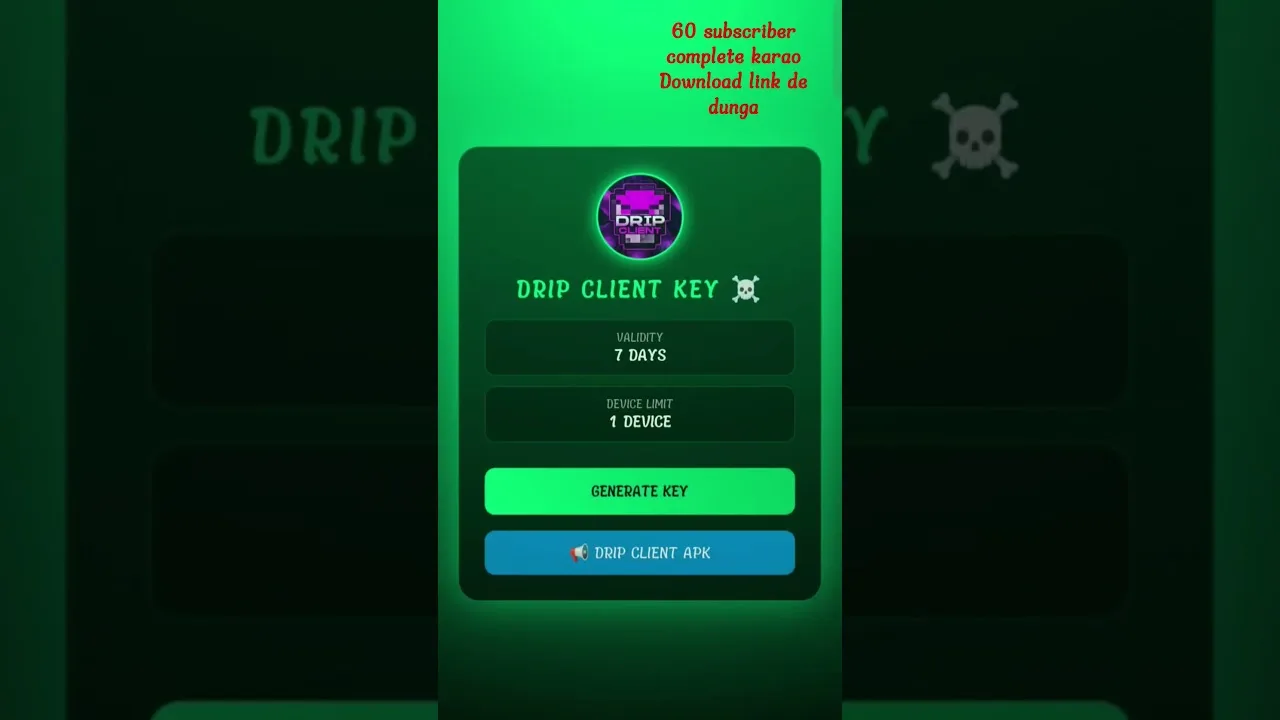
Drip Client Panel Not Showing? The Three-Cause Fix
The session starts, you reach for the panel, and the screen offers nothing. A missing overlay feels like breakage, but its causes are environmental and few: the overlay permission, the battery manager's enthusiasm, or a stale process in the aftermath of an update. This guide to the Drip Client panel missing problem checks the three in order — the sequence matters, because each check is cheaper than the next remedy down the line.
Reinstalling comes last in this philosophy, deliberately: it resets permissions and hazards profiles, and the overwhelming majority of cases surrender two settings earlier.
Cause One: The Permission Went Missing
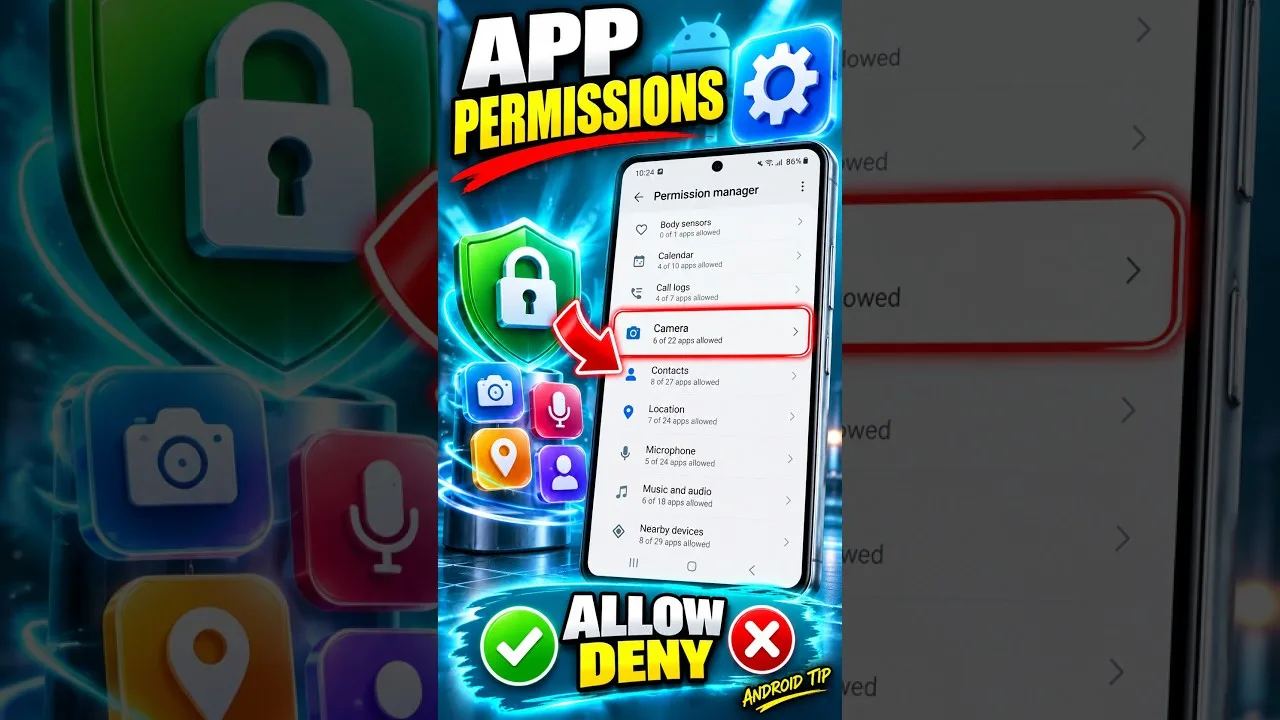
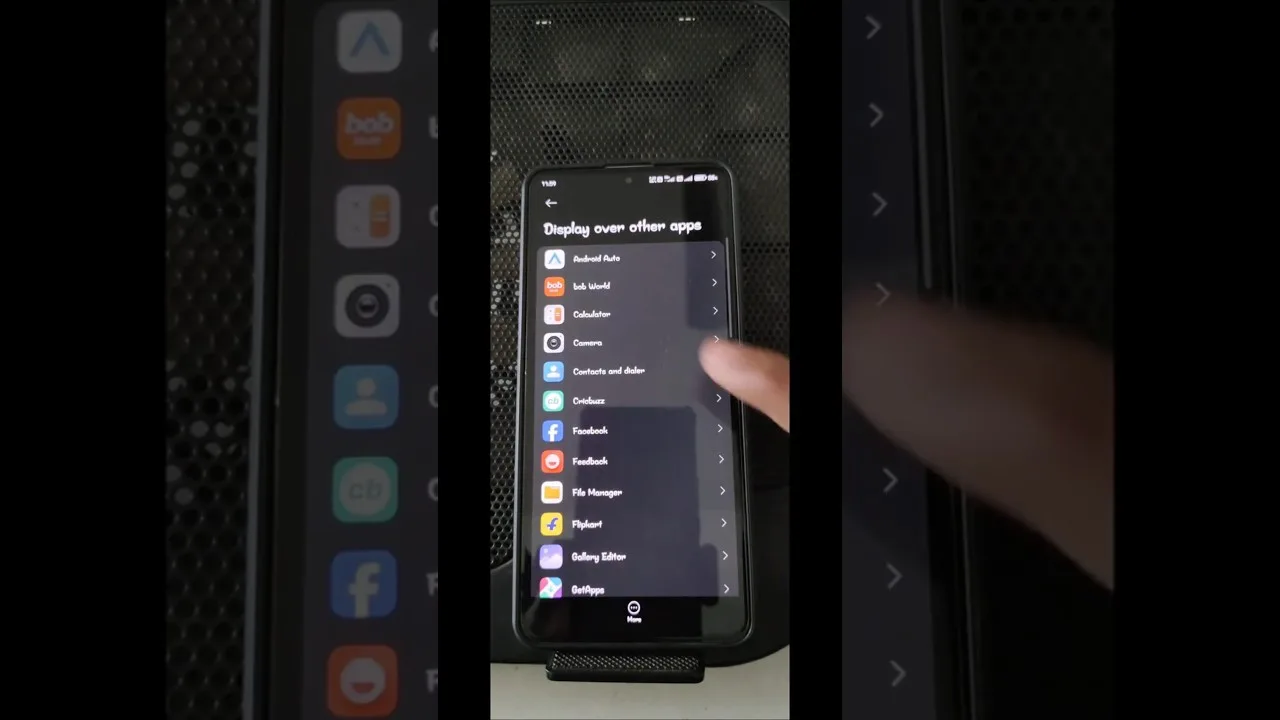
An overlay cannot draw uninvited, and the invitation can be revoked silently — by system updates, permission resets, or cleaner utilities tidying beyond their brief. Open the special-access overlay list and confirm Drip Client stands as allowed.
Toggle restored, app relaunched, story usually over. What this permission is and why it deserves respect are covered in our permissions explained guide — worth reading once, before you need it in a hurry.
Cause Two: The Battery Manager Did It
Modern Android puts background apps to sleep with conviction, and a sleeping utility explains the sinister variant of this fault: the panel attends the first minutes, then quietly absents itself mid-session. Exempt the client from battery optimisation in its app-info settings and test one full session.
Several manufacturers operate a second, proprietary power regime with its own lists and autostart gates. If the standard exemption fails to hold, search the brand's battery settings for the app and allow it there too — double gatekeeping is routine on budget hardware.
Cause Three: A Stale Process, Wrongly Sequenced
Force-stop the app from app-info. Reopen the client first, verify the panel presents over the home screen, and only then launch the game. Sequence is the substance here: the overlay service must be alive and authorised before the game claims the display.
After a full phone restart, repeat the identical order. This resolves the stale-process family, which predictably clusters after app or game updates — the same border country our update guide patrols from the other direction.
If the Panel Still Refuses
Widen the net to the remaining ordinaries: storage too full for the app to hold state, a competing overlay utility contesting the screen, or a game update that altered presentation. Silence rival overlays for one session and let the conflict theory stand or fall on evidence.
Beyond that frontier, our not working fixes continue the tree through general app health to the reinstall — positioned, as it should be, at the end of the list.
Final Thoughts
Permission, power, process — in that order, at two minutes each. Nearly every vanished panel in recorded history was one of the three, and all three surrender to settings rather than surgery.